Context
POM (Process Orchestration and Monitoring) is Oracle’s batch scheduler for RAP. It groups jobs into three chains: Nightly (runs every night on its schedule), Recurring (runs on a fixed interval), and Standalone (runs on demand). Setup, cleanup and troubleshooting run almost entirely through Standalone jobs — most notes in this vault that say “run process X with parameter Y” mean: follow the steps below to open X in POM, edit its parameters to Y, and start it.
RAP has two separate POM schedulers, one per side of the platform:
- AIF DATA — jobs that operate on the RI data warehouse (
RADM01). Examples: business date setup, calendar load, dimension seeding. - AIF APPS — jobs that operate on the AIF Apps schema (
RASE01). Examples:RSE_MASTER_ADHOC_PROCESS, application schema cleanup.
The calling note always tells you which scheduler to use, the name of the process, the name of the job inside that process, and the parameter string (if any).
Quick access
- Open the standalone job — navigate POM to reach the job you want to run.
- Edit parameters — set the input parameters before running (skip when the calling note gives no parameters).
- Run and monitor — start the job and check its status.
- Common issues — what to do when the job does not start or ends in error.
Open the standalone job
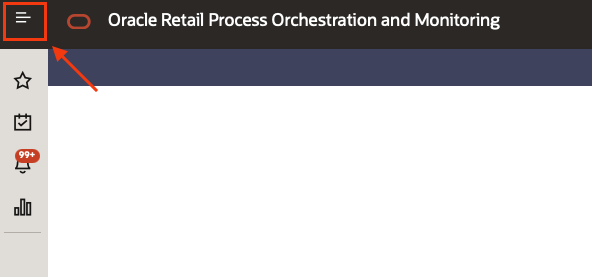
- In POM, click on the top left menu.
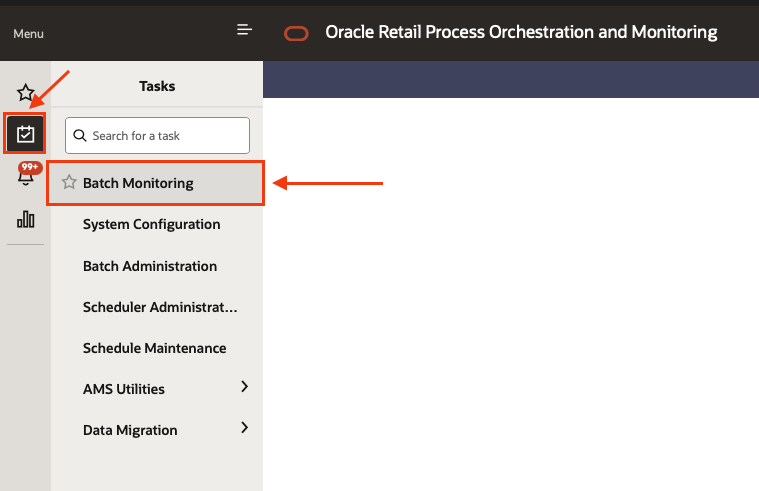
- Select the sub menu Tasks and then Batch monitoring.
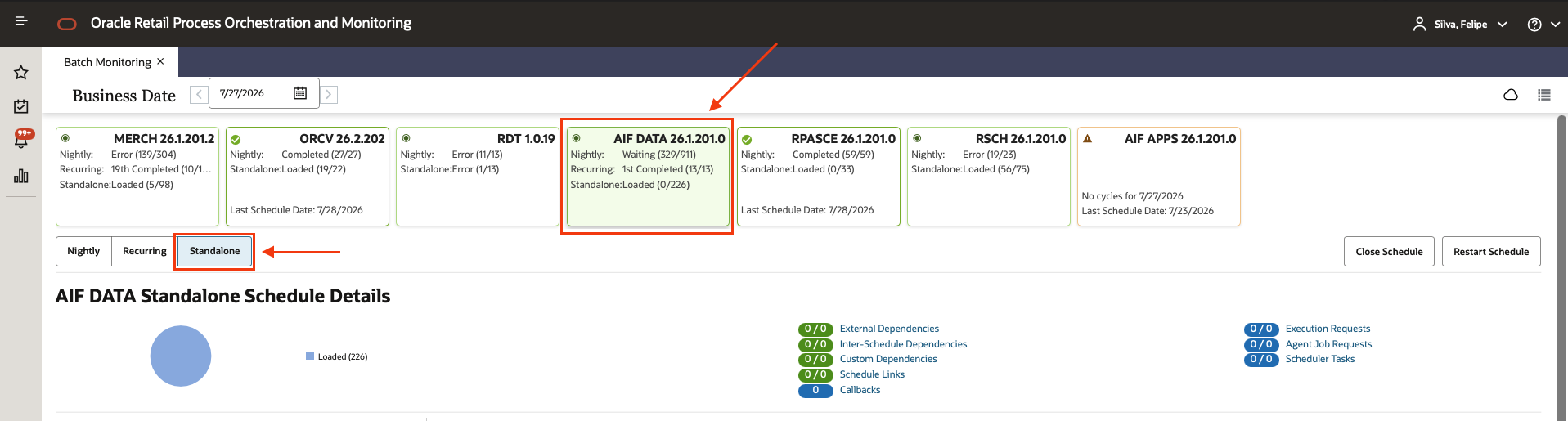
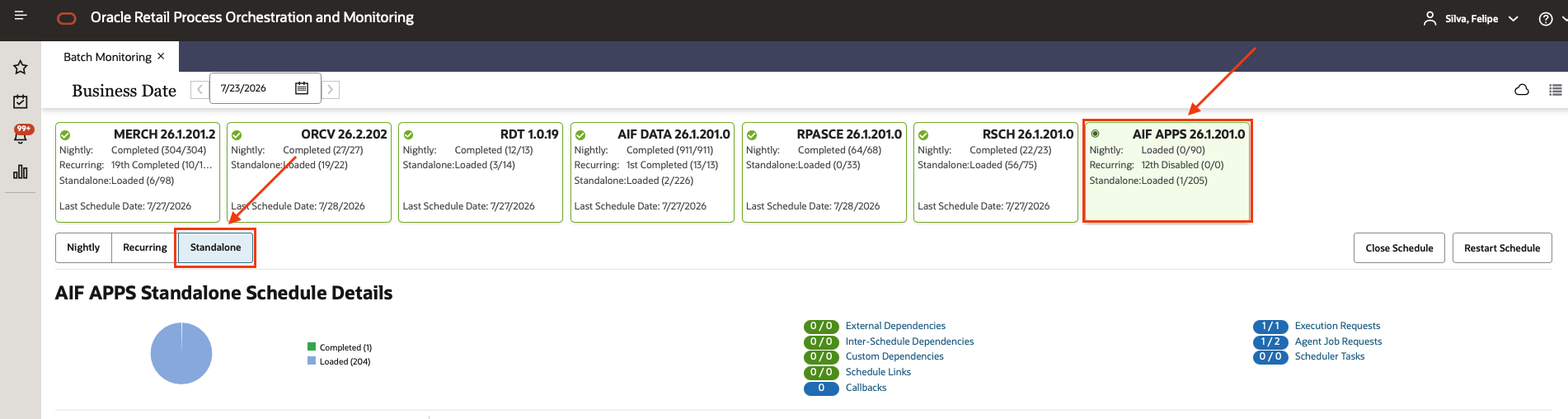
- Select the scheduler indicated by the calling note (AIF DATA or AIF APPS), and then the Standalone chain.
- Using the filter box at the top of the Standalone list, type the process name given by the calling note (e.g.
LOAD_CURRENT_BUSINESS_DATE_ADHOC,AIF_APPS_MAINT_DATA_CLEANUP_ADHOC_PROCESS,RSE_MASTER_ADHOC_PROCESS) and click on the matching process once it appears. Do not click the “play” button yet.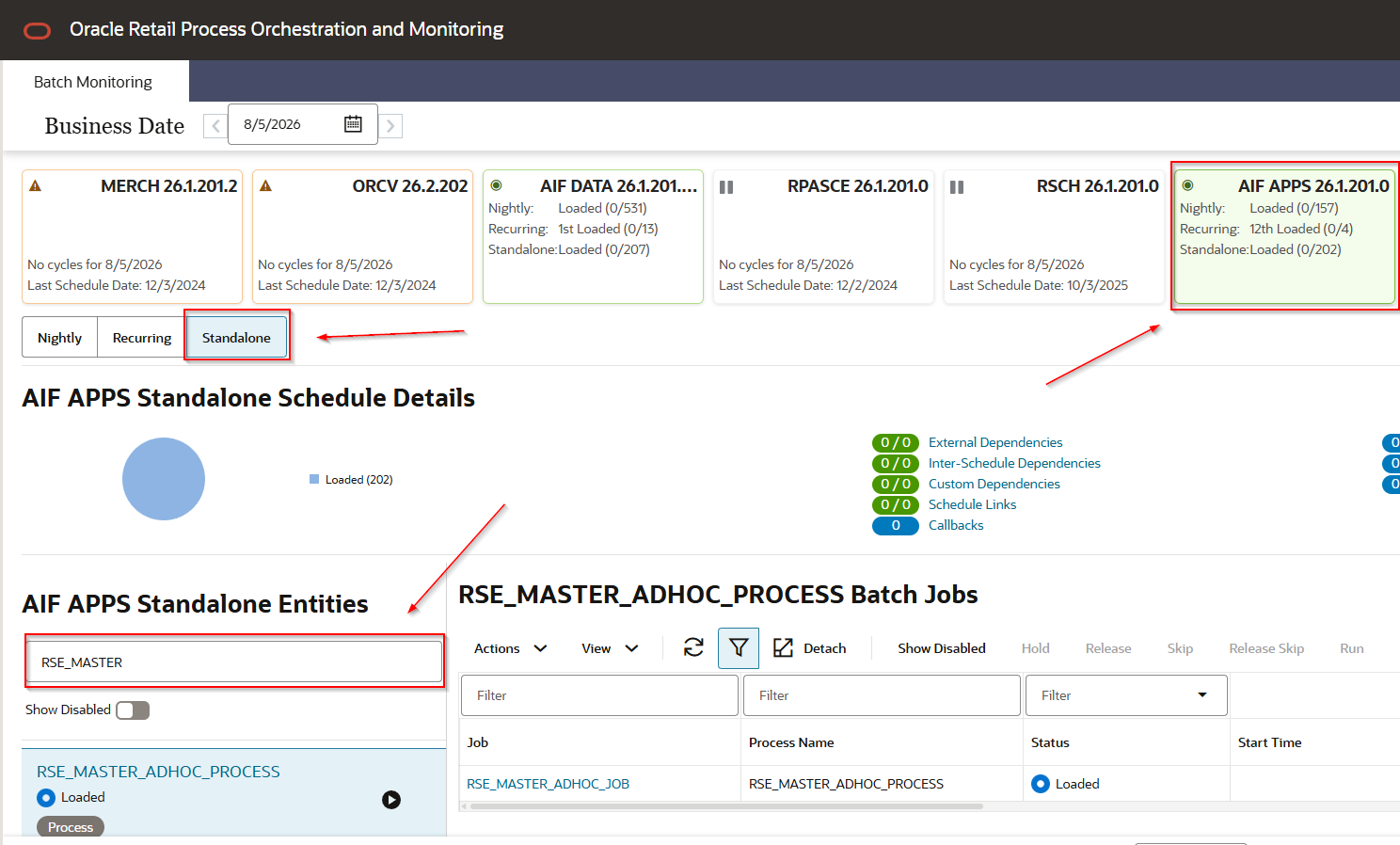
- Standalone processes are containers — the actual job lives inside. Select the job under the process (usually named the same as the process but ending in
_ADHOC_JOB, one per process).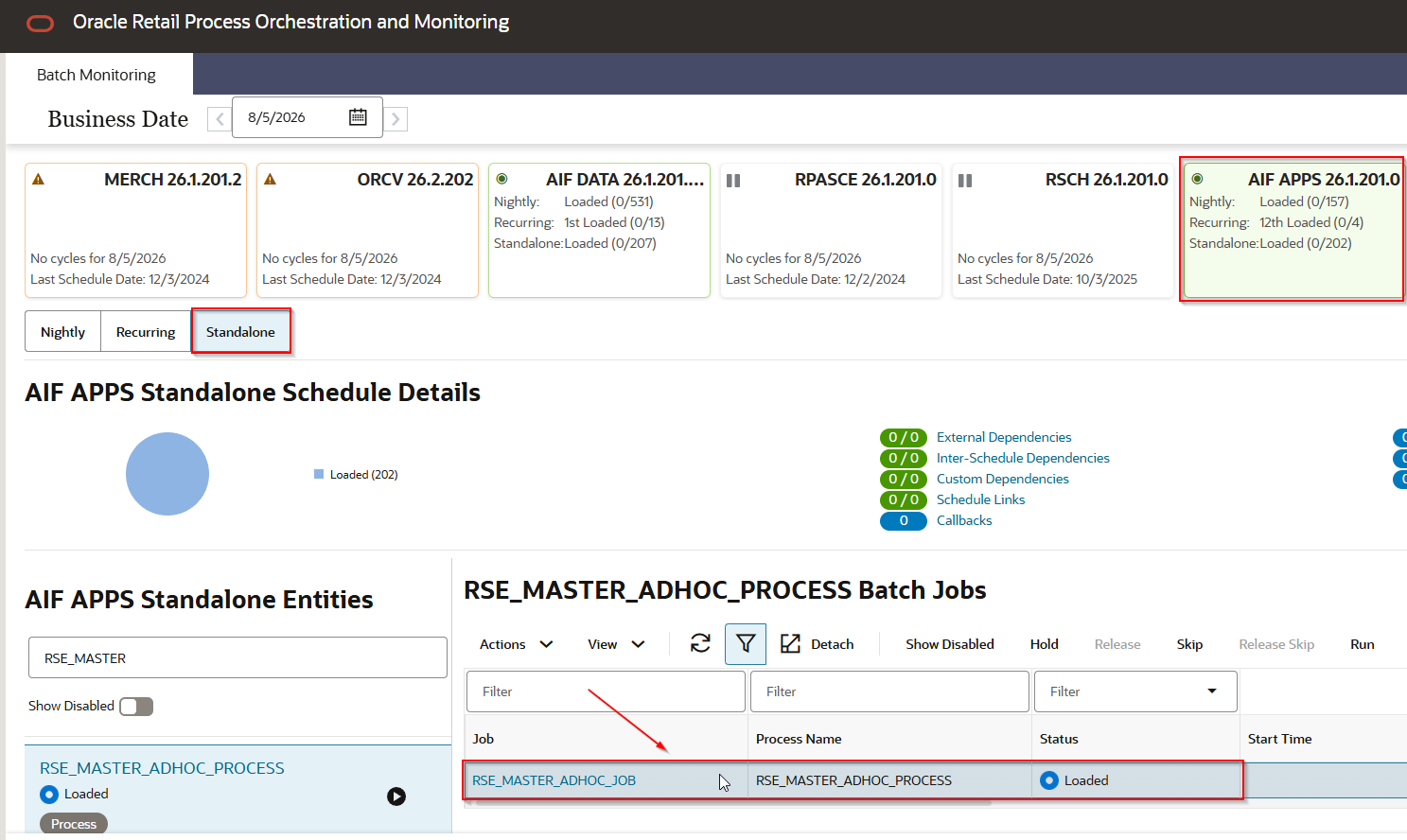
Edit parameters
Most standalone jobs take a parameter string (e.g. -h ALL -r Y -a ALL -o N, -pldg, -xwa --from:20240101 --to:20260322). If the calling note gives you one, edit it before running — POM will not prompt for parameters at run time.
If the calling note does not give a parameter string, skip this section and go to Run and monitor.
-
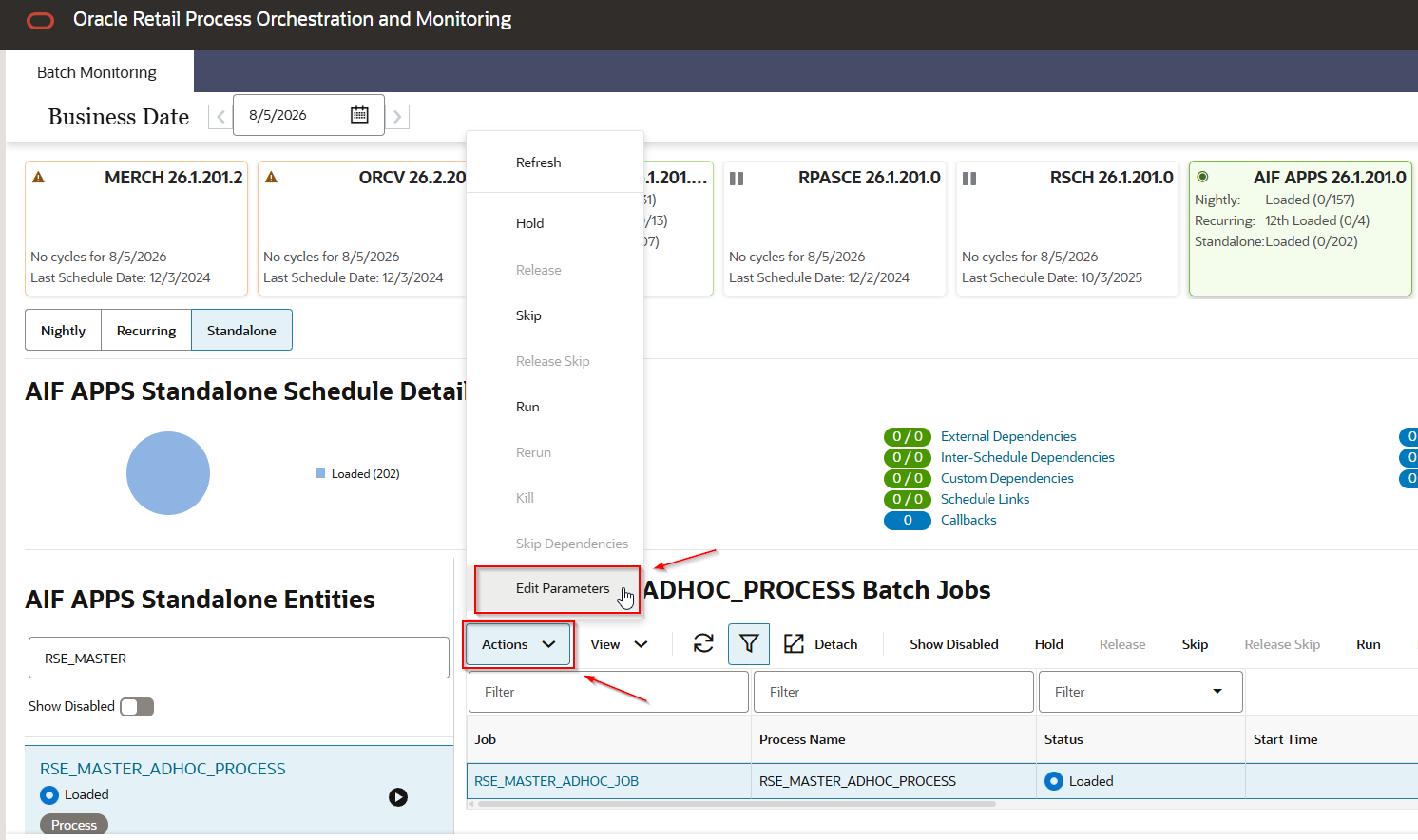
With the job selected, click Actions and then Edit Parameters.
-
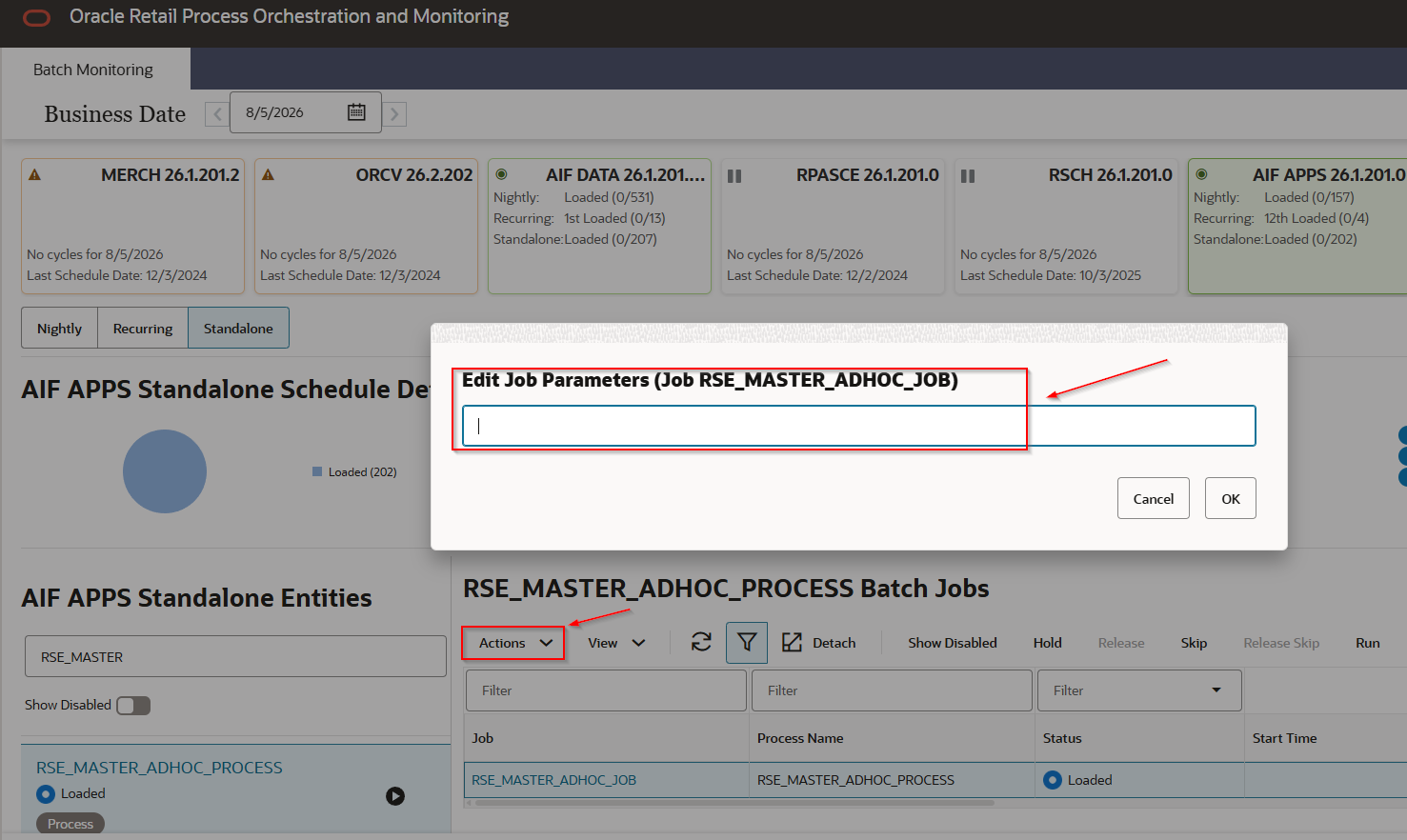
On the Edit screen, paste the parameter string from the calling note into the parameter field, exactly as written. Confirm there are no stray spaces around the flags — POM treats the whole string as-is.
-
Save the change by click on OK button and close the dialog. The parameter set persists until you edit it again — the next run of the same job will use whatever is currently saved.
Run and monitor
- With the job (or the parent process) selected, click the Run action.
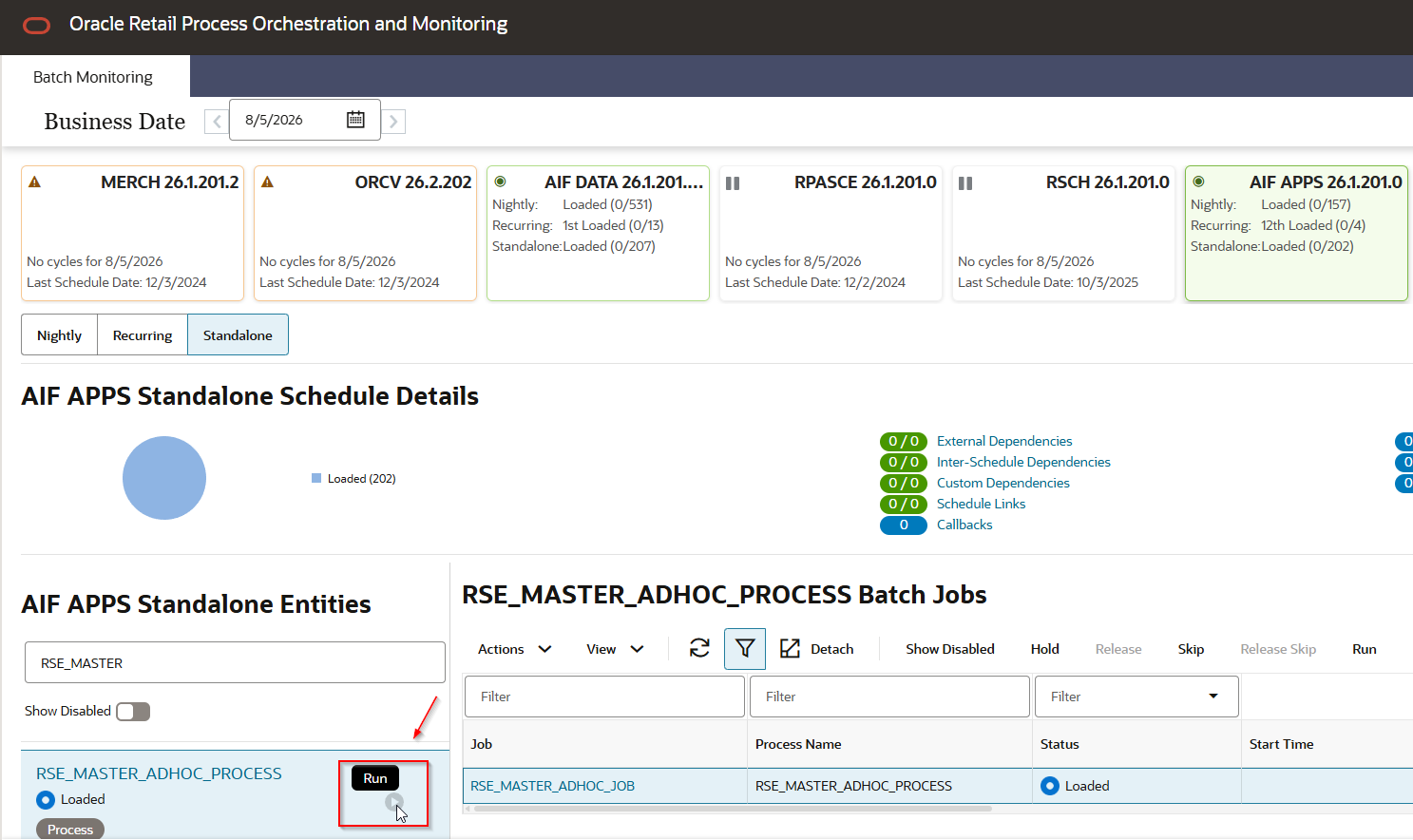
- Refresh the list. The status column moves from Ready → Running → Complete on success, or Ready → Running → Error on failure. Some jobs take 30 min or longer — the calling note usually gives an expected duration.
- Click the job status to open the log. The log includes the actual
EXT_PROG_SYS_OUTlines the process printed. When the calling note references a specific error message, this is where you find it.
Common issues
- Job stays in “Ready” and does not start. The Standalone chain may be paused. Check the chain status at the top of the Standalone view; resume it if paused.
- Job ends in “Error”. Open the log and look for
EXT_PROG_SYS_OUTlines — that is where the process prints its actual error message. The calling note may reference the specific error (e.g.TO date appears too far in the futurein Date validation errors). - Parameter change did not take effect. POM sometimes displays the previous parameter set after Save. Reopen Edit Parameters to confirm the value is what you saved, and rerun.
- Wrong scheduler. Jobs on
RADM01do not appear in AIF APPS, and vice versa. If the filter returns nothing, confirm you are on the scheduler named by the calling note.