Context
Loads sales transaction history into RI from a file, for implementations that do not source sales through the MFCS integration. The interface is SALES.csv, listed in Interfaces guide. It moves through four tables:
| Stage | Table |
|---|---|
| CSV staging | W_RTL_SLS_TRX_IT_LC_DY_FTS |
| Data staging | W_RTL_SLS_TRX_IT_LC_DY_FS |
| Base fact | W_RTL_SLS_TRX_IT_LC_DY_F |
| Week aggregate | W_RTL_SLS_IT_LC_WK_A |
Four stages: extract the file from the source, upload it in a ZIP, configure which aggregates to build, then run the three POM processes in order. Sales is normally the first fact loaded, before Receipts, Inventory and Price.
Quick access
- 1 Extract the file — extraction script and
DAY_DTformat.- 2 Build and upload the ZIP —
RAP_DATA_HIST.zipand FTS.- 3 Configure the aggregations —
C_HIST_LOAD_STATUS.- 4 Run the POM processes — zip, stage, load.
- 5 Check rejected records
- 6 Aggregate for RI reporting —
C_RI_AGGREGATION_MAPand the aggregation utility.- Validate
1. Extract the file
Extraction script: <repo folder>/<script name>.sql.
DAY_DT must come out already formatted as YYYYMMDD, matching what the sales.csv.ctx control file declares — the load rejects rows whose date does not parse.
SELECT
	FORMAT_DATE('%Y%m%d', DAY_DT) AS DAY_DT,
	-- remaining columns per the SALES.csv file specification
FROM <source table>
WHERE DATE(updated_at) = DATE '<extraction date>';
Before building the file, record the range you are loading — it defines the --from/--to used later in Push data to AIF Apps and the last date in 3 Configure the aggregations:
SELECT min(DAY_DT), max(DAY_DT)
FROM <source table>
WHERE DATE(updated_at) = DATE '<extraction date>';
2. Build and upload the ZIP
- Build
RAP_DATA_HIST.zipcontaining both files:SALES.csvsales.csv.ctx
- Upload it with the FTS script.
3. Configure the aggregations
HIST_SALES_LOAD_ADHOC builds every sales aggregate by default, and most of the ~30 _A tables exist only for RI reporting. In C_HIST_LOAD_STATUS:
- Set
HIST_LOAD_LAST_DATEto the latest date you expect to load history for — themax(DAY_DT)from 1 Extract the file. It can be raised later to load more weeks. - Set
ENABLED_INDtoNfor the aggregate tables you do not need.
When the data only feeds AI Foundation or Planning, the ones that must stay enabled are the base fact W_RTL_SLS_TRX_IT_LC_DY_F and the week aggregate W_RTL_SLS_IT_LC_WK_A. For RI reporting, leave everything enabled.
Disable the corresponding jobs inside the HIST_SALES_LOAD_ADHOC process in POM as well:
- Open Tasks > Batch Administration, select the AIF DATA scheduler and the Standalone chain.
- Filter for
HIST_SALES_LOAD_ADHOCand expand it to list its jobs — there is one aggregation job per_Atable. - Clear the Enabled checkbox for each aggregate you disabled in
C_HIST_LOAD_STATUS, and save. - Restart the POM schedule in Batch Monitoring for the change to apply.
4. Run the POM processes
Three processes run in order on the AIF DATA Standalone schedule:
Validate the staging table between steps 2 and 3 — see Validate.
Run each of them this way:
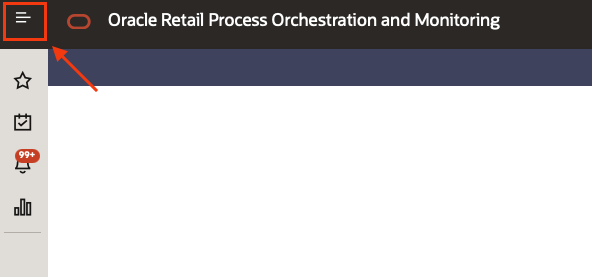
- In POM, click on the top left menu.
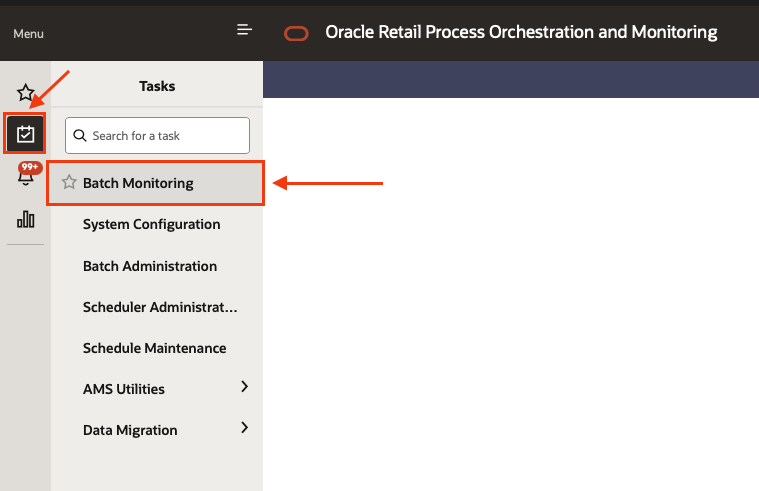
- Select the sub menu Tasks and then Batch monitoring.
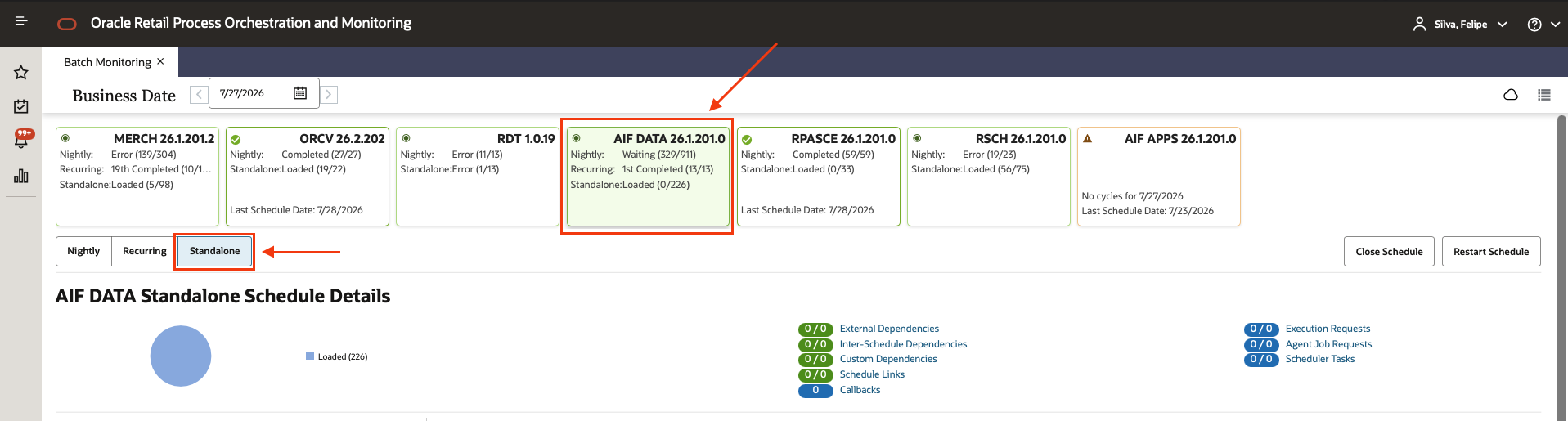
- Select the AIF DATA scheduler, and then the Standalone chain.
- Using the filter box at the top of the Standalone list, type the process name and click on the matching process once it appears. Do not click the “play” button yet.
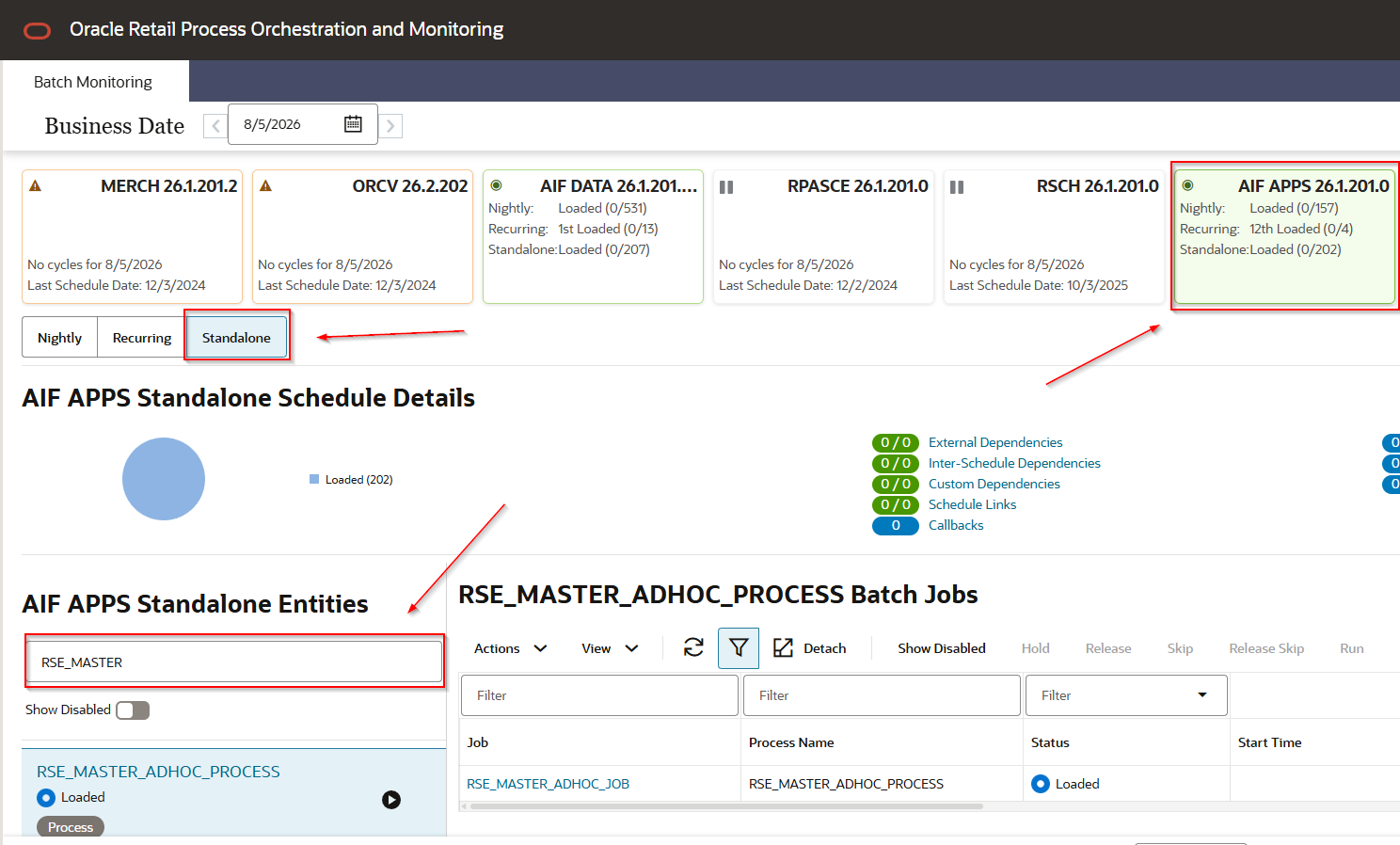
- Select the job under the process.
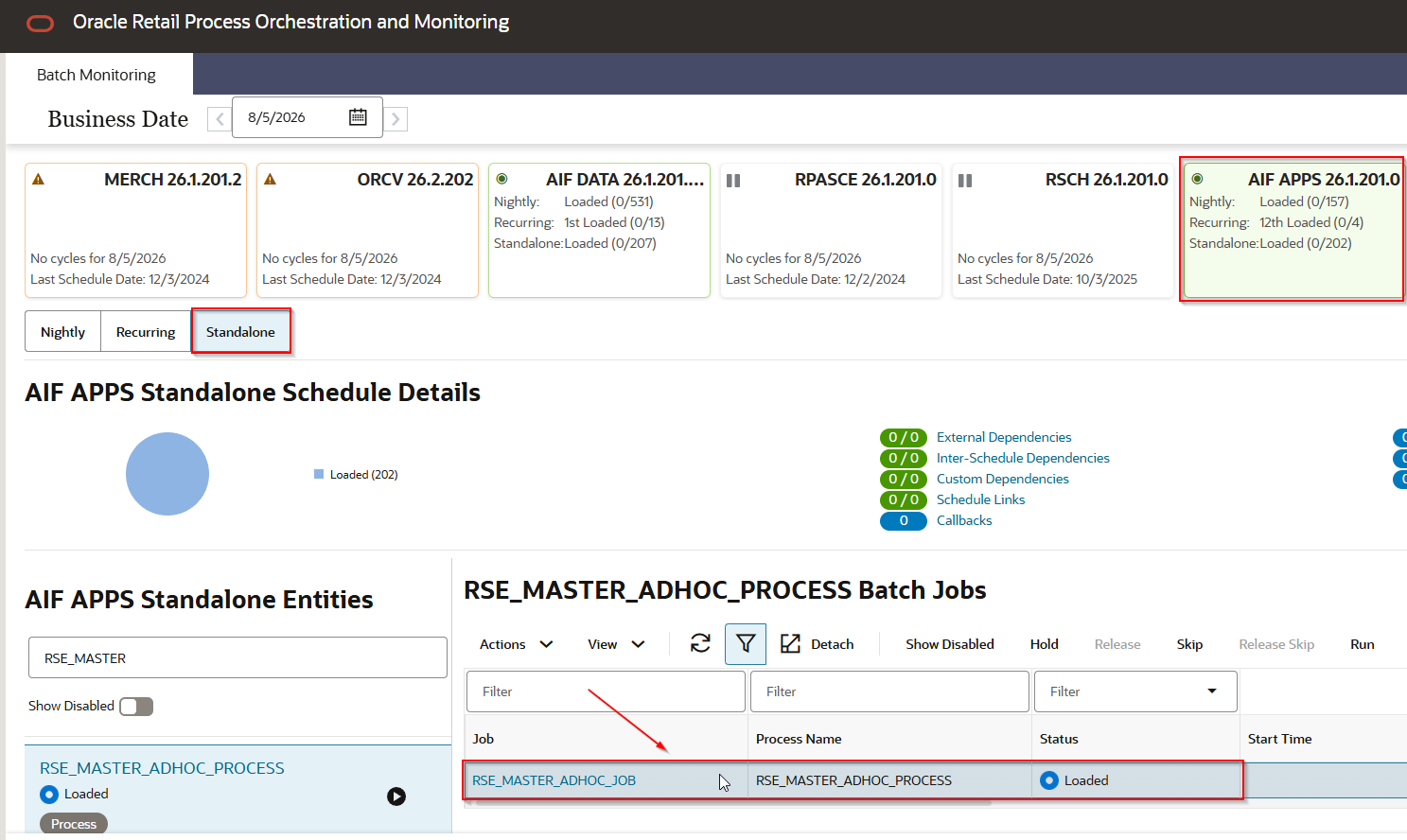
- Click Run, then refresh until the status reaches Complete. Click the status to open the log — the
EXT_PROG_SYS_OUTlines are where the process prints its own messages.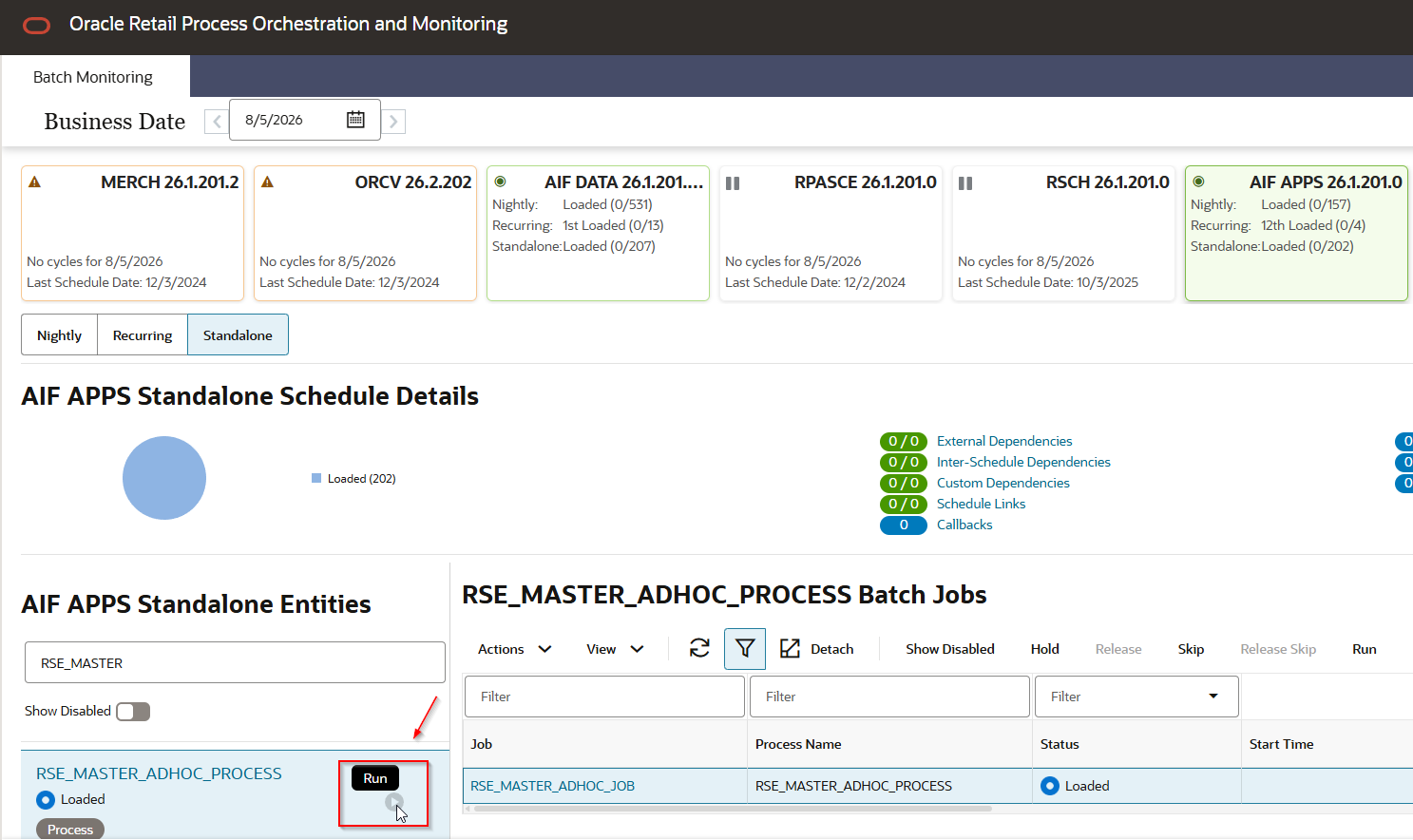
None of the three processes take parameters. If a job stays in Ready and never starts, the Standalone chain is paused — check the chain status at the top of the Standalone view and resume it.
5. Check rejected records
Rejections are the usual cause of a failed or short load — typically items or locations present in the sales file but missing from the dimensions.
select * from W_ETL_REJECTED_RECORDS;
select * from W_RTL_REJECT_DIMENSION_TMP;
After reviewing them, run REJECT_DATA_CLEANUP_ADHOC and rerun the failed job. Full procedure in Rejected records cleanup.
6. Aggregate for RI reporting
Only when RI reporting is in scope, and only after the base fact is validated. The aggregates skipped in 3 Configure the aggregations are built afterwards by the aggregation utility, which recalculates the higher-level tables from the base fact.
Prerequisites, all of them required every time the utility runs:
- Partitioning has been done for
SLS. W_RTL_SLS_TRX_IT_LC_DY_Fis loaded for the whole range to be aggregated.- Statistics are current —
REFRESH_RADM_JOBandANAYLZE_TEMP_TABLES_JOBhave run recently.
In C_RI_AGGREGATION_MAP (Control Center in the AI Foundation UI), for the tables under MODULE_CODE = SLS, set START_DT and END_DT to the range being aggregated. Week (WK) tables should use week start/end dates and month (GMH) tables month start/end dates; by default the utility auto-extends the range to full weeks and months, controlled by RI_AGG_FULL_LOAD_TYPE in C_ODI_PARAM_VW.
Then, on the AIF DATA Standalone schedule:
AGGREGATION_UTILITY_ADHOC— run once to validate the configuration and set up the temp tables. It containsAGG_UTILITY_PRE_JOBandAGG_UTILITY_ORG_PRE_JOB(product and organization hierarchy lookups) andAGG_UTILITY_JOB, which takes two parameters: the table name fromC_RI_AGGREGATION_MAPand eitherFRESHorRESTART.RESTARTresumes from the last completed quarter and is the safe default.AGGREGATION_SRVC_ADHOC—AGG_SRVC_JOBtakes a single parameter,SLS, and runs every table of that module in the order set byAGGREGATION_LEVEL. The twoPREjobs above must have run at least once first.
Monitor progress in C_BULK_LOAD_STATUS — one row per calendar quarter processed. On failure, check C_RI_SRVC_REQ_QUEUE (status 6 is success, 7 is failed) and RI_LOG_MSG where PROGRAM_UNIT = RI_AGGREGATION_UTIL.
Do not aggregate past the business date
Once nightly batches are enabled, an
END_DTlater than the current business date causes batch failures when the nightly run tries to insert a date the utility already populated. Wait for the current business week to close before re-aggregating it.
Validate
Row counts should carry through the chain: FTS matches the file, FS matches FTS, and F matches or is close to FS. A drop between FS and F means rows were rejected — see 5 Check rejected records.
-- Check the CTX parsed every column correctly
select * from W_RTL_SLS_TRX_IT_LC_DY_FTS;

-- Should match the record count of the SALES.csv file just loaded
select /*+ OPT_PARAM('_optimizer_answering_query_using_stats' 'FALSE') */ count(*) from W_RTL_SLS_TRX_IT_LC_DY_FTS;

-- Should match the FTS count
select /*+ OPT_PARAM('_optimizer_answering_query_using_stats' 'FALSE') */ count(*) from W_RTL_SLS_TRX_IT_LC_DY_FS;

-- Should match or be close to the FS count
select /*+ OPT_PARAM('_optimizer_answering_query_using_stats' 'FALSE') */ count(*) from W_RTL_SLS_TRX_IT_LC_DY_F;

-- Date range must match what was extracted
select min(DAY_DT), max(DAY_DT) from W_RTL_SLS_TRX_IT_LC_DY_F;

-- Week aggregate
select /*+ OPT_PARAM('_optimizer_answering_query_using_stats' 'FALSE') */ count(*) from W_RTL_SLS_IT_LC_WK_A;
To find which transactions were dropped between staging and the base fact:
select * from
(
select fs.fs_trx_id, tg_trx_id
from
(select /*+ parallel */ sls_trx_id fs_trx_id from w_rtl_sls_trx_it_lc_dy_fs) fs left outer join
(select sls_trx_id tg_trx_id from w_rtl_sls_trx_it_lc_dy_f union all select sls_trx_id from e$_w_rtl_sls_trx_it_lc_dy_tmp) tg
on (fs.fs_trx_id = tg.tg_trx_id)
) where tg_trx_id is null;
Once the range matches, sales is ready to be pushed with RSE_MASTER_ADHOC_PROCESS -xwa in Push data to AIF Apps.